
Hello Everyone,
It’s been a long time, this topic is been on my todo list and finally on my reader's demand, I am writing about this topic. So the concept of dynamic templates being introduced in AEM 6.2 and when AEM 6.3 released, it brings some more improvements in this feature.
Now Creation of templates is not only the developer’s job. AEM has a new role of template-authors and these authors can create templates dynamically at any time as per the requirement.
The more we go in deep, the more things we will find out in this concept.So we will start from the very basics to advance and will learn how template editors work?
Steps to create Dynamic Templates
1. Go to Tools -> General -> Configuration Browser
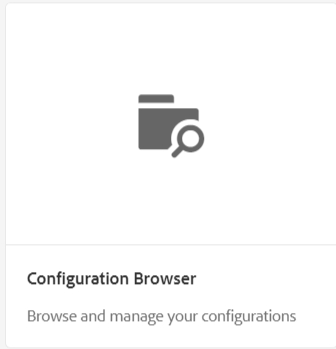 |
| Fig - Configuration Browser Option |
2. Create Configuration, Title should be your project name and check on editable templates.
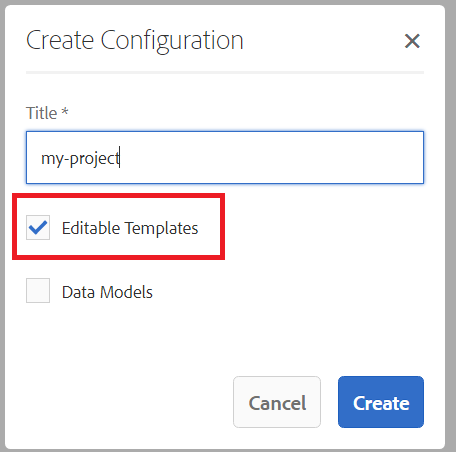 |
| Fig - Create template folder under conf directory |
3.It will create the basic hierarchy of templates in /conf directory.
 |
| Fig - Hierarchy of editable template under conf directory |
There are three parts of template editor:
- templates Here all the dynamic templates are contained which are created by template authors.
- policies: There are two types of policies:
- Template Level Policy: This policy is used to define client side libraries of all the pages, created from a particular template.
- Component Level Policy: These policies are used to define components for a particular responsive grid (parsys)for all the pages created from the template.
- template-types: This is a base template on the basis of which template author creates all its templates at the run time.
There are three parts of a template:
- initial: Initial Content mode is used to define content that will appear when a page is first created based on the template.The initial content can then be edited and removed by page authors.
- policies: Here a particular template is linked to a policy by using cq:policy property.
- structure:
- The structure allows you to define the structure of the template.
- The components defined in the template level can’t be removed from the resulting page.
- If you want that template authors can add and remove components, add a paragraph system to the template.
- Components can be locked and unlocked to allow you to define initial content.
To start working on dynamic templates, we need to create a page Component.
1.Go to the project hierarchy, and click on Create Component.
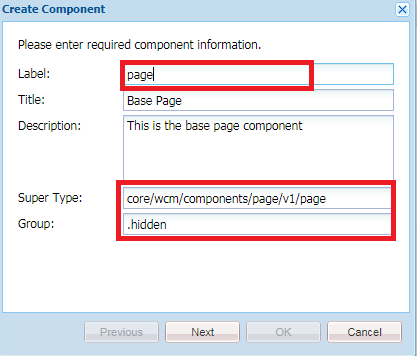 |
| Fig - Creation of Page Component |
Now create a base template-type
1. Creation of a template-type is a job of developer which helps template authors to create it’s dynamic (editable) templates.
2. Go to /conf/my-project/settings/wcm/template-types.Create a node “empty-page” of type cq:Template.
 |
| Fig - Creation of template-types |
 |
| Fig - add basic property in template-type |
4. Create “initial” of type “cq:page” inside “empty-page”.
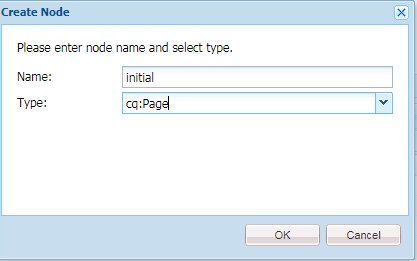 |
| Fig - Creation of Initial Hierarchy of Template-types |
5. Create a Node “jcr:content” of type cq:pageContent under initial node and add a property "sling:resourceType" pointing to a page Component (myproject/components/page/page).
 |
| Fig - Adding the page component as a rsource type in intial structure of template-types |
initial hierarchy:
+initial(cq:Page)
+--jcr:content(cq:PageContent)
sling:resourceType :myproject/components/page/page
|
6. Create structure node hierarchy exactly like you have created initial hierarchy under “empty-page”.
structure hierarchy:
+structure(cq:Page)
+--jcr:content(cq:PageContent)
sling:resourceType :myproject/components/page/page
cq:deviceGroups :/etc/mobile/groups/responsive
+--root(nt:unstructured)
sling:resourceType :wcm/foundation/components/responsivegrid
+--cq:responsive
+--breakpoints
+--phone
title: Smaller Screen
width{Long}: 650
+--tablet
title: Tablet
width{Long}: 1200
|
7. Now create policies hierarchy under “empty-page”.
policies hierarchy:
+policies(cq:Page)
+--jcr:content
sling:resourceType : wcm/core/components/policies/mappings
+--root(cq:PageContent)
sling:resourceType : wcm/core/components/policies/mapping
|
8. Create a image of name “thumbnail.png” to create a thumbnail of template-type. Now I am ready with the base template type and the role of template author has been started.
How Template author Creates Dynamic Templates?
1. Go to Templates-> Go to your project-> Create-> Choose empty template.
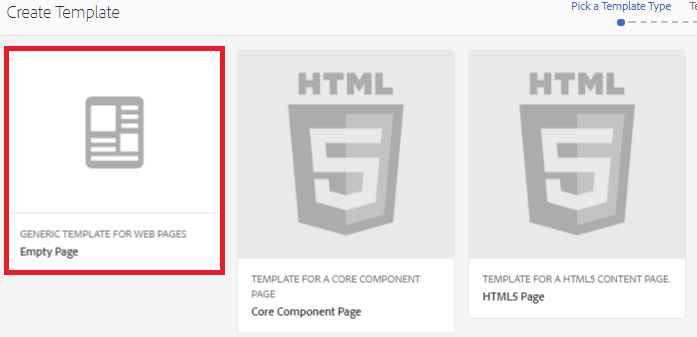 |
| Fig - Creation of Editable Template from Template-tyes |
3. There will be a responsive grid available.
 |
| Fig - Responsive Grid (Layout - Container) in the Editable Template |
Demonstration video of Creating a template-type, editable template and create pages from it:
Now Understand what is Template Level Policy?
Template level policy allow you to define specific client-side-libraries for a particular template.
1.Go to the template Page Design.
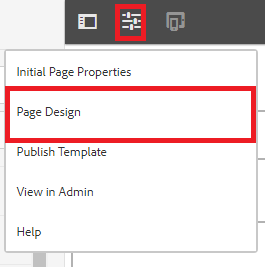 |
| Fig - Select the Page Design option for creating the template level policy in Editable template |
2.You can see the dialog over template author can add client side libraries at the run time by creating a template level policy.
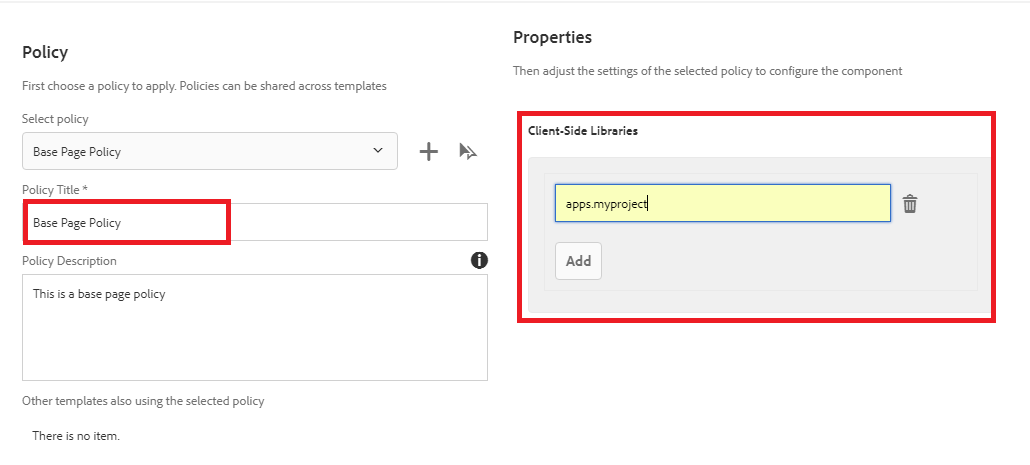 |
| Fig - Creation of Template Level Policy |
Understand the structure of the template level policy on node levels.
Benefits of Template level policy:
Now Understand what is Component Level Policy?
So, In layout level Policy, you can create a policy and allowed component for a particular layout container. Only the selected components in the policy will be able to use by page authors for that specific container.
Note: Enable the template and you can create multiple pages for your website from a particular template.
Now you will see the templates when you create pages from that template.
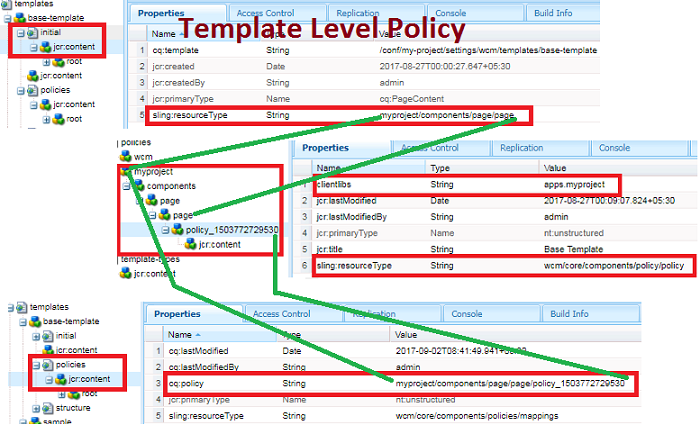 |
| Fig - Flow and Structure of Template level policy |
Benefits of Template level policy:
- Now there is no need to include or hard code client libraries in the page component.
- Template authors can dynamically add or remove client side libraries as per the requirements.
We are going to have the policy of a Layout container.
 |
| Fig - Option for creating the Component Level Policy |
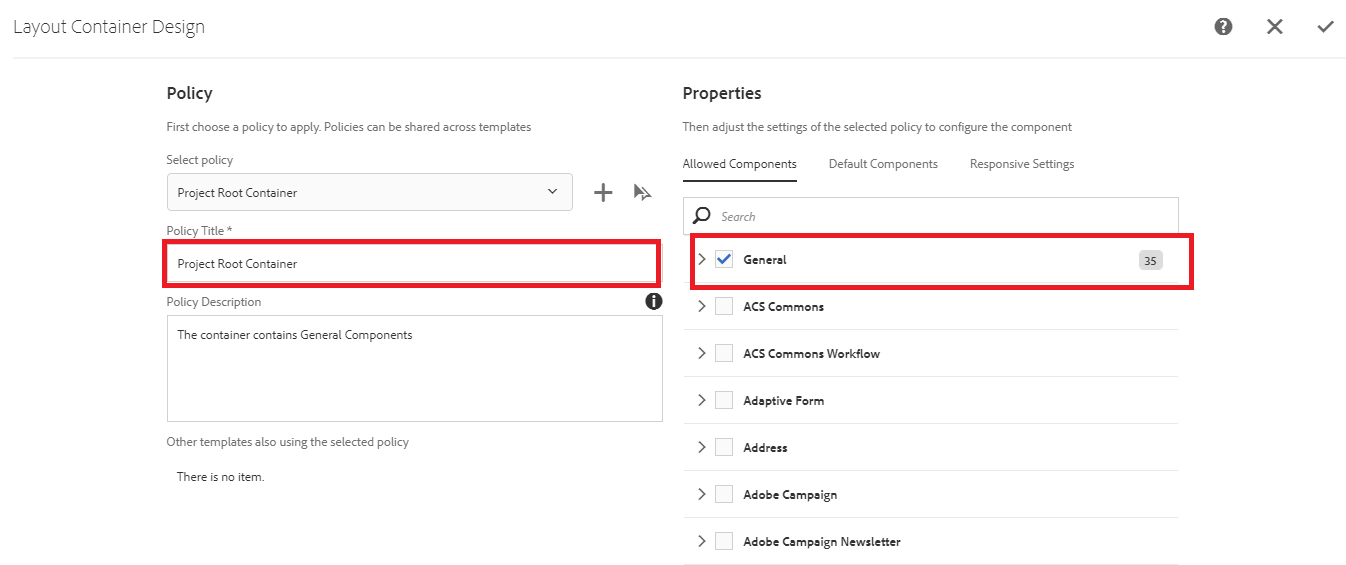 |
| Fig - Creation of Component Level Policy |
Note:Configuring a policy is mandatory for container components as it enables you to define components that will be available in the container.
Note: If we want to provide flexibility to page authors to drag components in the container, then don’t forget to unlock parsys.
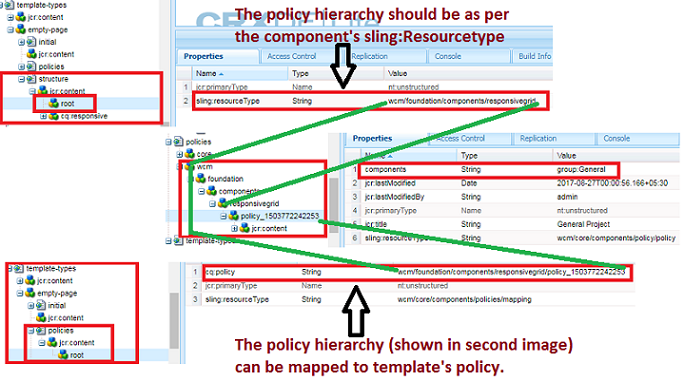 |
| Fig - Flow and Structure of Component Level Policy |
But there is a need to allow template under a hierarchy,where you want to create pages from that template.
Create a page without a template(you need to create page manually) and add a property in page properties dialog.
 |
| Fig - Allowed Template for creating the page |
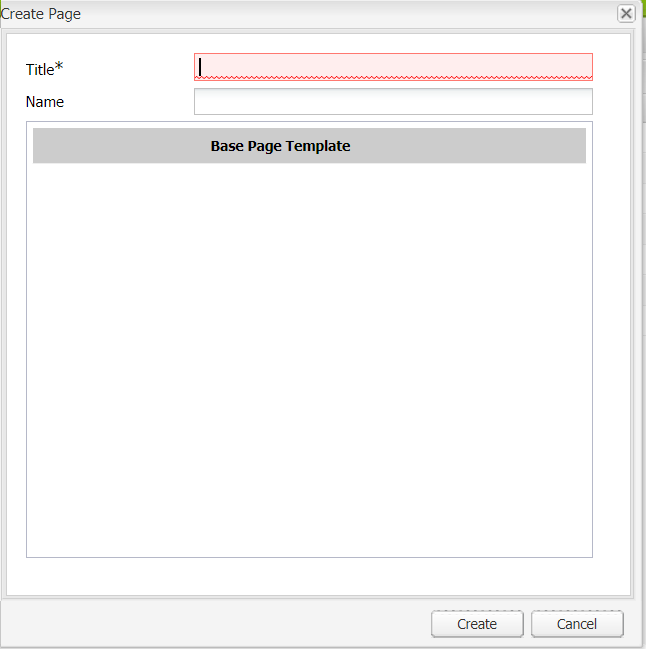 |
| Fig - Page Creation from editable template |
Now you will see the templates when you create pages from that template.
Demonstration video of template level policy and component level policy:
If you have any query or suggestion then kindly comment or mail us at sgaem.blog02@gmail.com
Hope it will help you guys !!
Thanks and Happy Learning.